San Francisco Bay Area · Residential & small business
Every room. Every device. No more dead spots.
We design and install WiFi that actually reaches the back bedroom, the garage workshop and the patio — and we split it into separate networks so your business, your kids and your smart devices never share a lane.
Ubiquiti UniFi systemsFour separate networksSame-week appointments
Coverage plan · 2,200 sq ft + detached office
Home. Laptops, phones and the TV. Full access to printers and shared drives, and first priority on video calls.
Why one router isn't enough
The box from your internet provider was built for a small apartment.
Bay Area houses fight WiFi: lath-and-plaster walls, stucco with wire mesh, foil-backed insulation, detached garages and converted ADUs. A single router in the front closet was never going to cover it.
Symptom 01
The call drops when you walk
Your phone clings to the far-away router instead of handing off. Real mesh hardware moves you between access points without dropping the call.
Symptom 02
Everything slows at 8pm
Streaming, game consoles and forty smart devices all elbowing for the same lane. Separate networks and traffic priority end the fight.
Symptom 03
Guests are on your business network
If the babysitter, the contractor and your point-of-sale terminal all use one password, one compromised device reaches everything.
One installation
Four networks, four sets of rules.
Same equipment, same walls — but each network gets its own name, its own password and its own boundaries. Devices on one can’t see or reach devices on another. Four is the limit we design to, on purpose.
This matters most if you run a business from home. Client data, card readers and work laptops stay walled off from a teenager's laptop and a cheap smart plug.
HomeYour everyday devices. Laptops, phones, TVs, printers, shared drives. Priority for video calls.
BusinessWork only. Point-of-sale, work laptops, client files. Isolated from every other network in the building.
Kids & guestsTime limits, filtering, and where visitors land. Bedtime cutoffs and blocked categories for your kids — and the same network is what you hand guests, with devices unable to see each other.
Smart devicesCameras, plugs, doorbells, thermostats. Fenced off, so a cheap device with old firmware can't reach your files.
A deliberate limit
Four networks. Not eight.
The equipment will happily broadcast eight. We don't, and the reason is performance: every extra network name adds radio overhead on every band, and past four it starts eating the bandwidth that wireless access points use to talk back to the gateway. More names, slower WiFi.
Guests ride the kids' network
It already has the right shape: internet only, no access to your files, printers or business devices. Visitors get the same fence your kids have. In practice, most families hand out that password anyway.
Devices can't see each other
We turn on isolation, so a guest's laptop can't reach your kid's tablet — or anything else on the network. It's a lane to the internet and nothing more.
A password you can hand out
You get a printed card and a QR code for the fridge or the front desk. Guests scan and they're on. Change it whenever you like without touching anything else in the house.
Running a business with real separation needs — staff, point-of-sale and public visitors all distinct? There's a way to run several device groups behind a single network name, each with its own password. We'll bring it up at the survey if your setup calls for it.
What we do
Survey, design, install, tune.
Every job starts with measuring your actual signal — not guessing from a floor plan.
Step 01
Site survey
We walk the property and record signal strength room by room — including the yard, garage and any outbuildings — plus how crowded the airwaves are from neighboring networks. You get the readings marked up on your floor plan, before and after.
Step 02
Design and quote
A written plan: how many access points, where they mount, what cable runs are needed, and a fixed price before anyone drills anything.
Step 03
Clean installation
Ethernet run through attics, crawlspaces and conduit. Ceiling or wall mounts, tidy terminations, labeled ports at the rack or closet.
Step 04
Network setup
Your networks configured and named, passwords set, filtering and schedules applied, printers and existing gear reconnected.
Step 05
Walkthrough
We re-measure every room with you watching, using the same tool and the same settings, so the before-and-after is a fair comparison. You leave knowing how to add a guest, pause a device and change a password.
Step 06
Ongoing care
Optional remote monitoring, firmware updates and support, so you're not the one reading release notes at 11pm.
Why this gear
I bought most of them before I settled on this one.
Over the years I tried nearly every WiFi system you can pick up at Best Buy or Costco. Every big name. Each one left me frustrated in the same ways: coverage that fell apart at the edges, an app that hid anything actually useful, and no way to tell whether a problem was the router, the walls or the internet company.
So I went further afield and worked through the brands most people never look at — the equipment installers and IT departments use. I landed on Ubiquiti UniFi, and I've built on it ever since. Not because it's the most expensive, and not because anyone pays me to say so. Because it's the first system that stopped surprising me.
Here's the honest version of why, including the parts that won't suit everyone.
01
The range is in a different class
Consumer gear is designed to one price point, with small internal antennas. Business-class access points are built to cover a floor of an office. Put one in a house and it covers the house — and where it doesn't, you add a second that works with the first instead of competing with it.
02
Configuration you can actually reach
Separate networks, schedules, device rules — all of it in one app, laid out clearly. Consumer routers either hide these settings or don't have them. This is the difference between a system that does what you want and one you work around.
03
We can help remotely, if you want us to
With your permission, we can look at your system without a site visit. Most problems get diagnosed and fixed the same day, over the phone. Turn that access off whenever you like — it's yours to grant, not ours to keep.
04
No recurring fees to keep it working
You buy the equipment and you own it. Nothing expires, nothing gets throttled, no subscription stands between you and settings you already paid for. Some optional extras exist; none are required to keep your WiFi running.
05
It tells you what's happening — only if you ask
Which devices connected, when, how much they used, how strong their signal is. If you like detail it's all there. If you don't, the app opens on a single screen that says everything is fine, and you can close it. Depth that doesn't demand your attention.
06
You add to it instead of replacing it
Convert the garage, build an ADU, take on a member of staff — add one access point or one switch and it joins the system you already have. Consumer mesh kits usually mean buying the whole set again.
07
Updates keep coming
Consumer routers tend to stop receiving security updates within a few years of release, quietly. Business-class hardware is supported for far longer, because the buyers wrote it into contracts. Your household benefits from that pressure without having to negotiate for it.
08
Cameras and doors on the same system
If you later want a doorbell, cameras or a door reader, they join the same app rather than becoming a second account with a second subscription. Footage can record to a drive in your building instead of somebody else's server.
09
It's made by a US company
Ubiquiti is US-headquartered and publicly traded. That matters more than it used to: the FCC maintains a Covered List of communications equipment — including gear from Huawei, ZTE, Hikvision, Dahua and Hytera — facing federal authorization restrictions, and many organizations now bar it outright. Choosing US-made networking hardware today keeps your options open if those rules widen. If your business has a procurement requirement, tell us at the survey and we'll document exactly what goes in.
10
It's serviceable by someone other than us
UniFi is common enough that any competent network installer can work on it. If we vanished tomorrow you would not be stranded with something proprietary. We think that's a fair thing for you to be able to say about your own equipment.
Where it isn't the right answer
It costs more up front than a box from a big-box store. It needs setting up properly — the defaults are sensible but the value is in the configuration, which is most of what you're hiring us for. And if all you need is WiFi in a one-bedroom apartment with three devices, a $90 router is genuinely fine and we'll say so.
If what you want is a system that stays out of your way, holds up as you add to it, and can be looked at properly when something misbehaves — this is the one we'd put in our own house. It's the one in mine.
Every system has one brain — the gateway. It's your router, your firewall, and the thing that creates your separate networks. Which one you need depends on your internet speed, your building, and whether you want cameras. From there we add access points until the signal reaches everywhere it should.
Apartments & small homes$199
UniFi Express 7
UX7
A compact WiFi 7 gateway about the size of a coffee mug. Handles all four networks on its own, and you can add more of them later to mesh coverage outward.
WiFi 7 built in
10G capable
Mesh-scalable
Pick this when the space is compact and you want the smallest possible footprint.
Most homes & home offices$279
Dream Router 7
UDR7
Our default starting point. WiFi 7 plus a built-in PoE switch, so the access points we mount elsewhere in the house draw power over the same Ethernet cable — no outlet needed at the ceiling.
WiFi 7 built in
PoE switch on board
microSD for camera recording
Pick this when you want one box that runs the whole house and powers the access points too.
Spotty or no wired internet$499
Dream Router 5G Max
UDR-5G-Max
Same idea as the Dream Router 7, with cellular built in — up to 3.4 Gbps over 5G. It keeps you online when the cable line goes down, or serves as your only connection where wired service is poor.
WiFi 7 + 5G cellular
Automatic failover
AT&T and T-Mobile certified
Pick this when your business can't afford an outage, or you're in a spot the cable company forgot.
Fiber & heavy device counts$301
Cloud Gateway Fiber
UCG-Fiber
No WiFi of its own — this one is pure horsepower for multi-gigabit fiber, paired with access points we place where they actually belong. Room for an internal drive if you want cameras recording locally.
10G routing
Four 2.5 GbE ports
Optional 1 TB or 2 TB storage
Pick this when you have fast fiber and a lot of devices, and want ceiling-mounted coverage done properly.
Larger offices & big homes$1,077
Dream Wall
UDW
A flat panel that mounts on the wall instead of filling a closet with a rack. High-power PoE switching drives a dozen-plus access points, cameras and door readers from one tidy surface.
Wall-mounted, no rack needed
High-power PoE switching
10G routing, WiFi 6 on board
Pick this when it's a real building with real cabling and you want it to look intentional.
And the access points
The gateway alone rarely covers a whole property. We add ceiling- or wall-mounted access points — usually two to four for a house — placed where the survey says they belong, not where there happens to be an outlet. Outdoor units cover patios, driveways and detached garages.
Quoted per property after we measure. You'll see every line item before anything is ordered.
Manufacturer list prices as of August 2026, shown so you can check our math. We pass hardware through at cost plus a flat markup and itemize it on your quote. Availability changes — the Dream Wall in particular is often back-ordered. Product photography courtesy of Ubiquiti, Inc.
How we choose
You don't pick the hardware. We do — with you.
Nobody should have to compare five gateways to get WiFi in the back bedroom. Tell us about the building and how you use it, and we'll bring you one recommendation with the reasoning attached.
We askHow big is the space, and what's it made of? Plaster and stucco change everything.
We askWhat's your internet plan? No sense buying 10G routing for a 300 Mbps line.
We askDo you run a business here? That decides how many networks and how hard we separate them.
We askCameras, doorbell, door locks — now or later? Cheaper to plan for than retrofit.
We askWhat can't go down? If an outage costs you money, we build in a backup connection.
Then you get a written recommendation: which gateway, how many access points, where they go, and what it costs. If a cheaper box does the job, we'll tell you that instead of selling you the expensive one.
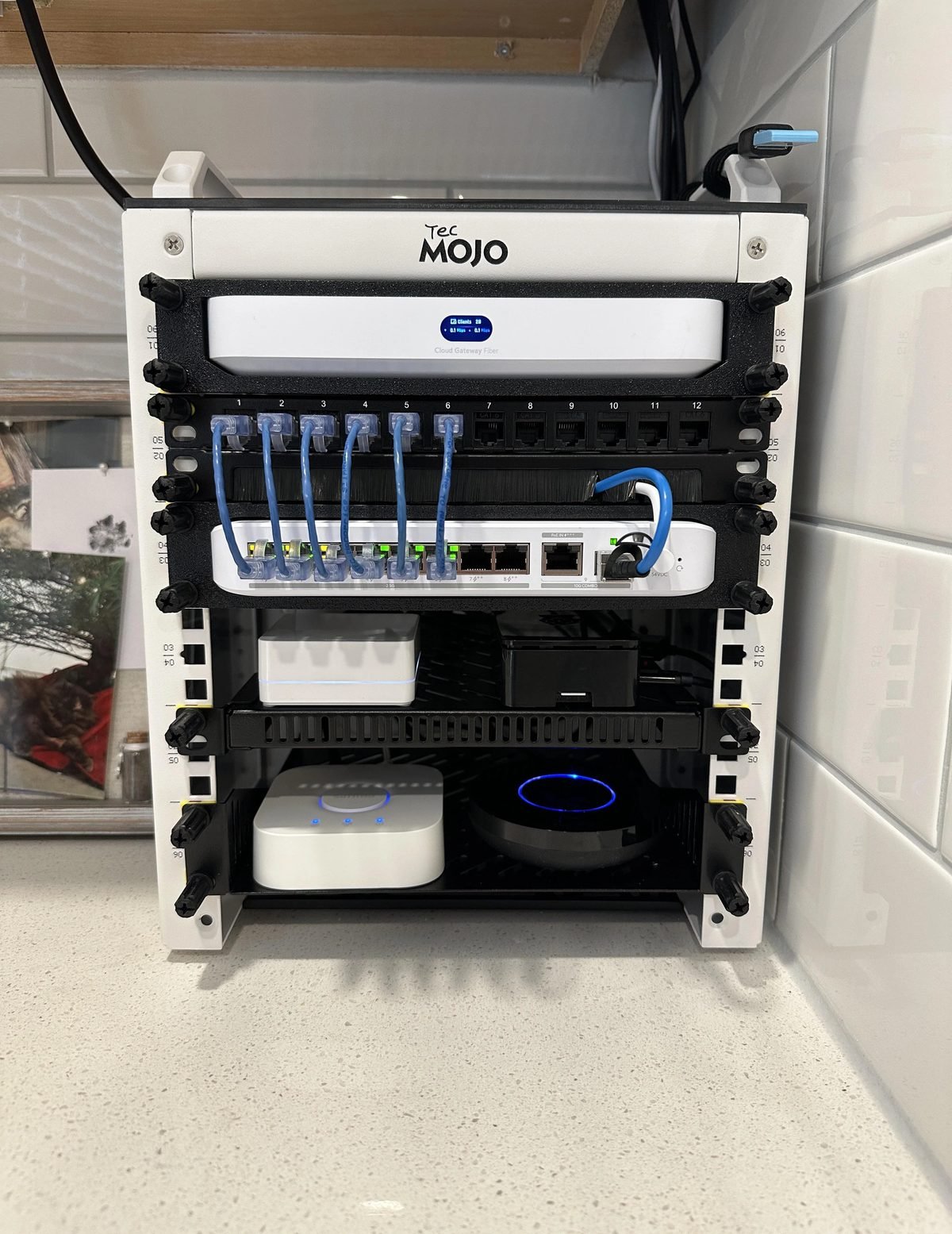
What a finished install looks like.
Gateway on top, patch panel beneath it, PoE switch feeding the access points. Every cable cut to length and labeled — so the next person to open this panel, including us, knows exactly what's what.
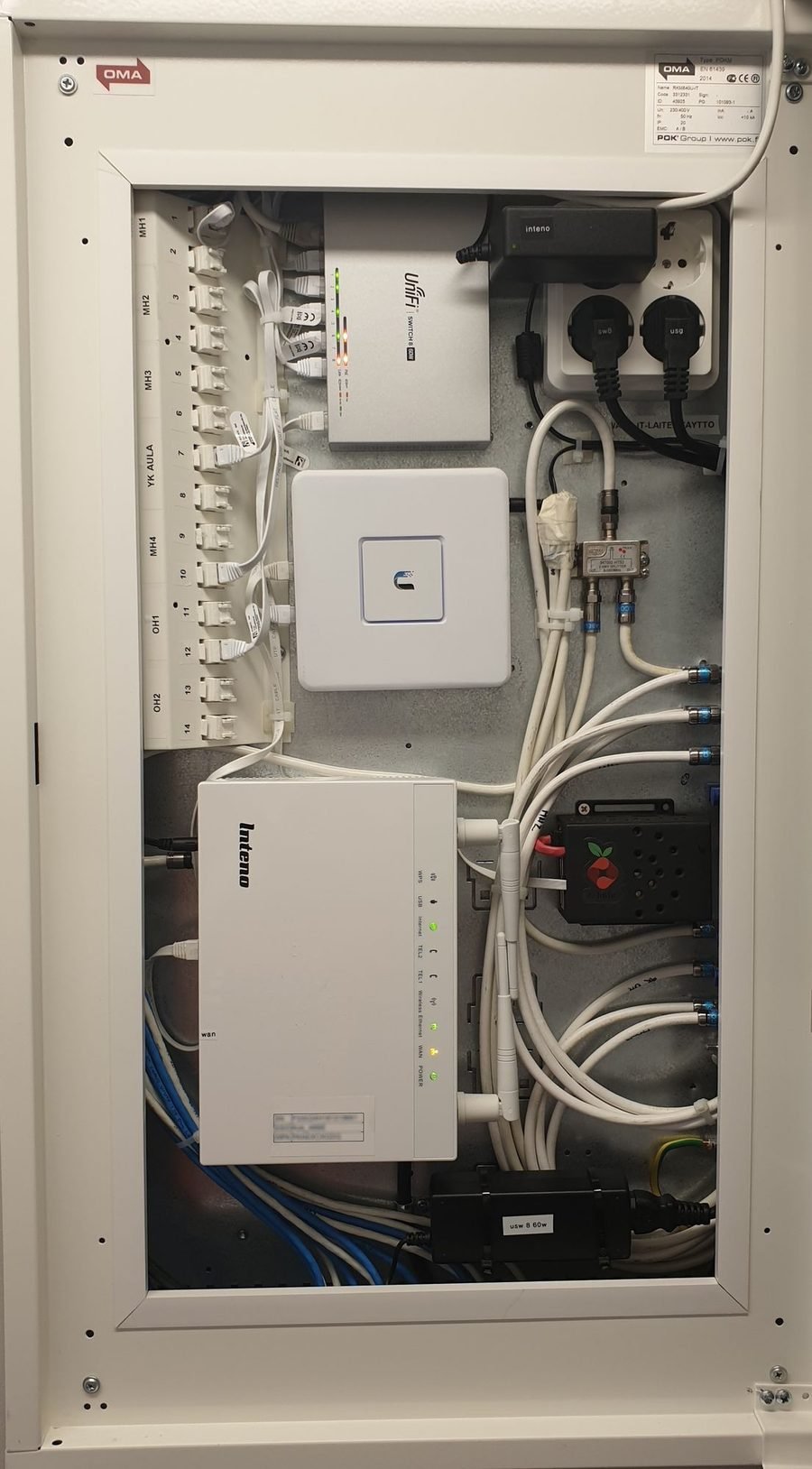
Every room, terminated and labeled.
In a house with wired runs, each room lands on its own labeled port. That's what lets us put a device on the business network or the kids' network later without pulling a single new cable.
Reference photography showing the standard of build we work to. We'll photograph your install at handover and the pictures are yours to keep.
Pricing
Fixed quote before we start.
Ranges below cover labor and configuration. Equipment is quoted separately at cost plus a flat markup, itemized so you can see it.
Older homes with plaster, stucco or no attic access take longer. We'll say so at the survey, in writing, before you commit.
Service area
Around the Bay.
We install WiFi across the nine-county San Francisco Bay Area, from Marin down to Gilroy. If you're just outside, ask — we'll tell you honestly whether the trip makes sense.
San FranciscoEvery neighborhood — including pre-war buildings with plaster walls, shared risers and forty neighbors on the same channel.
PeninsulaPalo Alto, Menlo Park, Atherton, Portola Valley, Woodside, Redwood City, San Carlos, Belmont, San Mateo, Foster City, Burlingame, Millbrae, Hillsborough, San Bruno, South San Francisco, Daly City, Pacifica, Half Moon Bay, East Palo Alto, Brisbane
South BaySan Jose, Santa Clara, Sunnyvale, Mountain View, Cupertino, Los Altos, Los Altos Hills, Los Gatos, Saratoga, Campbell, Milpitas, Morgan Hill, Gilroy, Monte Sereno
East BayOakland, Berkeley, Alameda, Emeryville, Piedmont, Albany, El Cerrito, Richmond, San Leandro, Hayward, Castro Valley, Union City, Newark, Fremont, Dublin, Pleasanton, Livermore, San Ramon, Danville, Walnut Creek, Lafayette, Orinda, Moraga, Concord, Pleasant Hill, Martinez
North BaySausalito, Mill Valley, Tiburon, Corte Madera, Larkspur, San Rafael, Novato, Petaluma, Napa, Sonoma, Santa Rosa — trip charge may apply north of San Rafael.
Not listed?Call and ask. If the drive doesn't make sense for the size of the job, we'll say so rather than pad the quote.
We're based in Palo Alto and cover San Francisco, San Mateo, Santa Clara, Alameda, Contra Costa and Marin counties. Most Peninsula and South Bay jobs are same-week.
Questions
Straight answers.
Will you have to drill holes?
Sometimes, and we'll show you exactly where before we do. Many jobs run cable through existing attic or crawlspace paths. Where a run isn't practical, we'll say so and propose a wireless uplink instead of pretending it's free.
Do I have to change internet providers?
No. We work behind whatever you already have — Comcast, AT&T, Sonic, Astound, a fiber ONT. If your provider's box can be put in pass-through mode we'll handle that too.
Is this a monthly subscription?
The installation isn't. You own the hardware and it keeps working with no fee. Ongoing monitoring and support is optional and priced separately.
Can I really cut off my kid's internet at bedtime?
Yes — per device, on a schedule, or instantly from your phone. You can also block categories of sites on the kids' network without touching anyone else's connection.
Where do guests connect?
On the kids' network. It's already internet-only with no path to your files, printers or work devices, and we turn on isolation so guests can't see other devices either. You get a QR code to hand out. We cap every install at four networks because more network names slow the WiFi down — a separate guest network isn't worth that trade.
What if something breaks after you leave?
Every install includes 30 days of follow-up. Most issues get fixed remotely the same day, because we can see the system without driving out.
I already own some UniFi gear. Can you use it?
Usually. Bring the model numbers to the survey. If a piece is too old to support what you want, we'll tell you rather than quietly working around it.
Guides
How this stuff actually works.
Plain-English explanations, no sales pitch. Worth reading before you hire anyone — including us.